Can AI read a MetaTrader or TradingView screenshot?
Yes. An AI chart analysis app such as Wick reads screenshots from MetaTrader 4 and 5, TradingView, broker apps and crypto exchanges, and even a photo of your screen. It picks up the ticker, timeframe, price, candles and visible indicators, and turns them into a structured analysis with key levels, bullish and bearish scenarios and an example trade plan.
Platforms that work
- MetaTrader 4 and MetaTrader 5, on desktop or mobile
- TradingView, in the browser or the app
- Broker and CFD apps, and crypto exchange charts
- A photo of a monitor, when you can't take a screenshot
Markets: stocks, crypto, forex and gold. Chart types: candlestick, bar and line charts, on any timeframe.
What the AI reads from the screenshot
- The ticker and timeframe, from the chart's labels
- The current price and the price axis, which anchor every level in the analysis
- The candles: trend, swing highs and lows, support and resistance
- Chart patterns, such as channels, triangles or double tops
- Indicators drawn on the chart, such as moving averages, Bollinger Bands or RSI
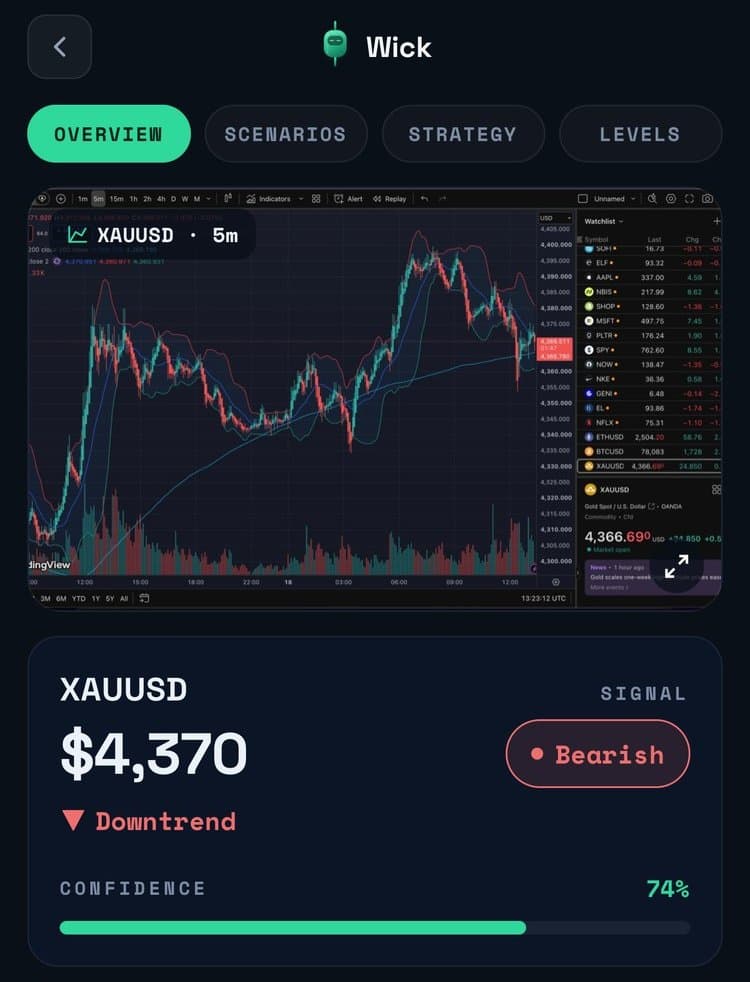
If something is not visible, for example the ticker is cropped out, Wick is designed to leave it out rather than guess.
How to take a screenshot the AI reads well
- Show the whole chart area, including the price axis on the right and the time axis at the bottom.
- Include enough history for the trend to be clear, not just the last few candles.
- Keep the ticker and timeframe label in view. Most platforms show it at the top left.
- Close panels or windows that cover the candles.
- If you photograph a screen, hold the phone straight on and avoid glare.
Taking the screenshot on each device
- iPhone (MetaTrader or TradingView app): press the side button and the volume-up button together. On iPhones with a Home button, press the side button and Home.
- Mac: press Shift-Command-4 and drag over the chart.
- Windows: press Windows-Shift-S and select the chart.
- From a computer, send the image to your iPhone, or photograph the screen with the camera in Wick.
What you get back
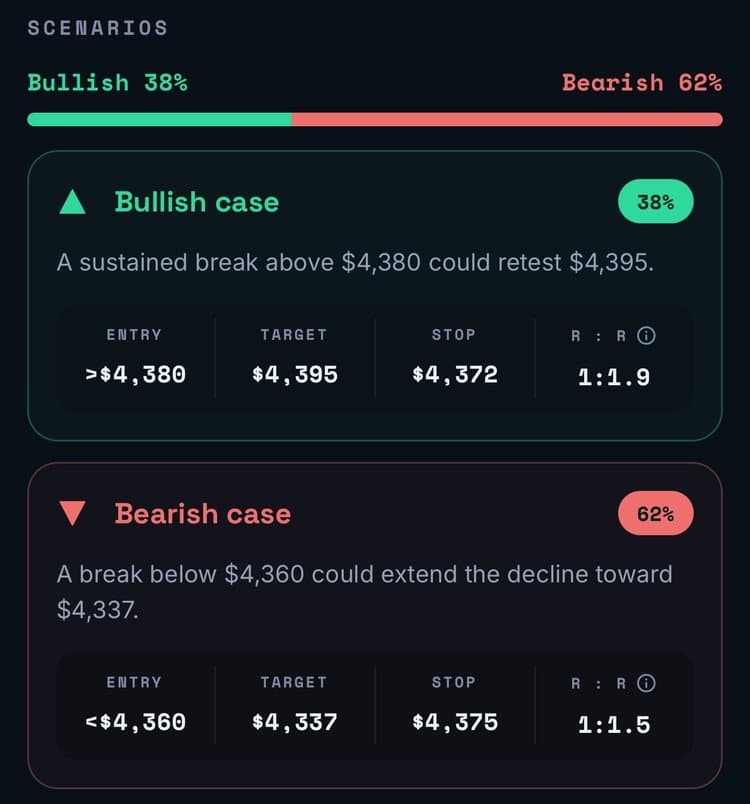
The report covers the signal and its confidence, the trend, market phase, momentum and risk level; bullish and bearish scenarios with probabilities; key support and resistance; the detected pattern; and a recommended approach with trigger, entry, stop and target.
Frequently asked questions
Does it work with MetaTrader 5 on a phone?
Yes. Take a screenshot in the MetaTrader 4 or 5 mobile app and upload it to Wick. On a phone, turning it sideways first fits more candles into the picture.
Do I need to connect my broker or TradingView account?
No. Wick only needs the image. It does not connect to your broker, TradingView or MetaTrader account, and it never places trades.
Can it read a photo of my screen instead of a screenshot?
Yes. A sharp, straight-on photo works. Avoid glare and make sure the price axis is readable.
What happens if the image is not a chart?
Wick first checks that the image contains a price chart. If it does not, Wick tells you instead of producing an analysis.
Educational content, not financial advice. Trading involves risk, including the loss of your capital. AI analysis can be wrong; always do your own research. Read the full disclaimer.